Web demo
bibr demo opens a page in your browser where you drop in one paper and see what bibr
extracts: the title, authors and abstract, the reference list, the full text, the tables,
and downloads in several formats. It runs the same pipeline as bibr chew, on the
machine where you start it. Use it to try bibr, to check a paper before you rely on it,
or to show bibr to someone. For many papers, use bibr chew on a folder or
bibr batch.
Install the extra
The demo needs Gradio, which comes with the demo extra:
uv add 'bibr[demo]'                 # in a uv project
uv tool install 'bibr[demo]'        # bibr installed as a tool
python -m pip install 'bibr[demo]'  # in a pip environment
Without the extra, bibr demo stops with a message that names the first two commands.
See Installation for the other extras.
Start it
(Run bibr demo without uv run if bibr is installed as a tool or with pip.) The demo
prints where it runs and opens that page in your browser:
bibr demo is running at http://127.0.0.1:7860/
  Fast mode: local models only, no AI language model. PDFs are read from their text layer, so scanned PDFs can't be read.
  Press Ctrl+C to stop.
Press Ctrl+C in that terminal to stop it. If port 7860 is taken (another demo is
running, for example), it says so and suggests the next one; pick a port with
--port, as in bibr demo --port 7861.
The terminal shows warnings only. --log-level info shows bibr's log as well, and
--log-level debug everything.
With nothing configured, the demo runs in fast mode: local models only, no LLM (large language model), no API key, and PDFs read from their text layer. The models download from Hugging Face the first time a run needs them, so the first paper takes longer, and its progress bar says that models are loading.
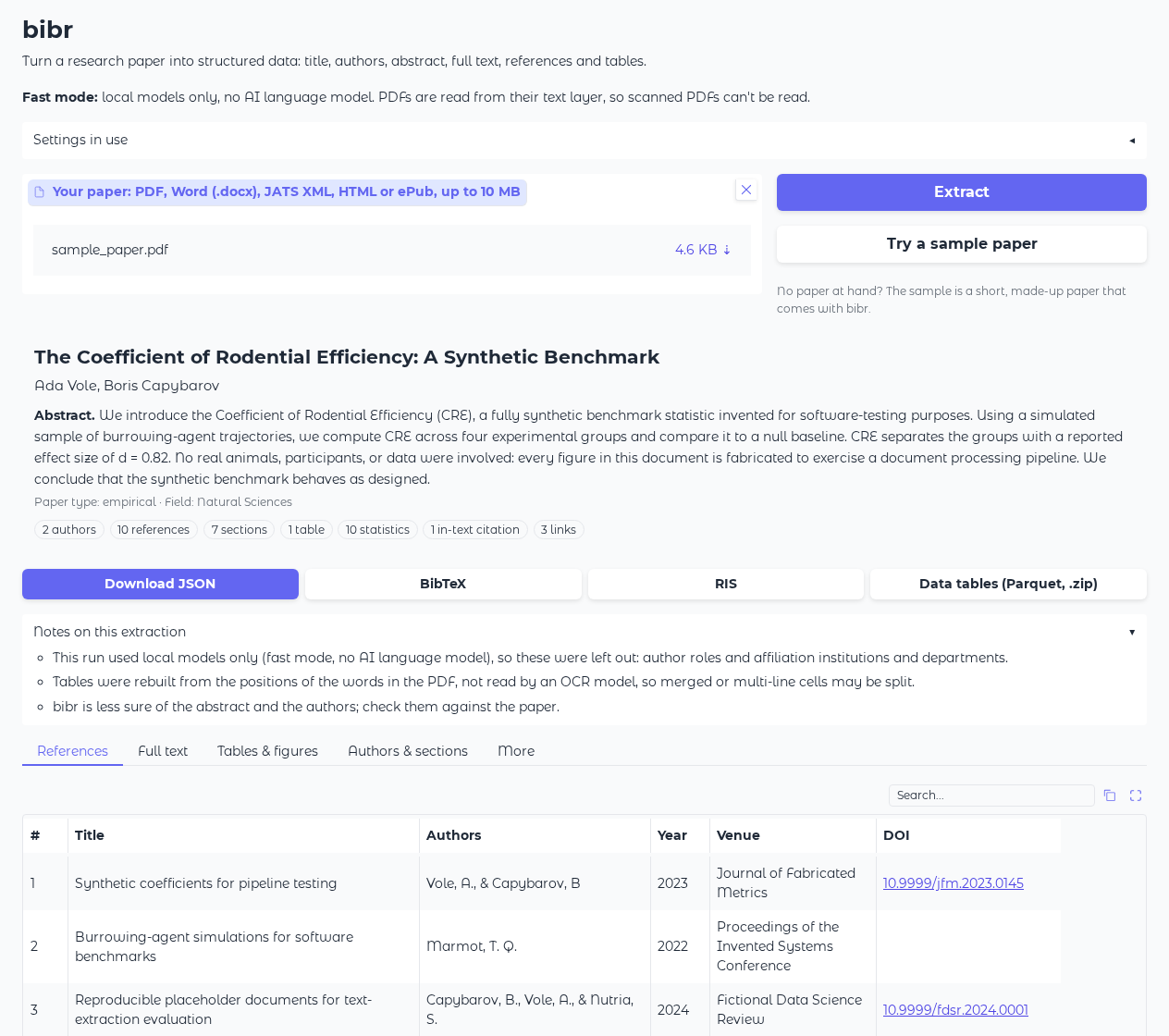
What you see
- A line under the title says how the demo reads papers. Settings in use opens
the details: the mode, how PDF text is read, the LLM, and the reference parser.
They are set when the demo starts (
bibr demo --helplists the options). - Choose a paper: a PDF, Word (.docx), JATS XML, HTML or ePub file, up to 10 MB by default. Then
click Extract. Try a sample paper runs the short, made-up paper that ships
with bibr, the one
bibr chew --samplereads, so you can try the demo without a paper at hand. - The result starts with what you would look for first: the title, the authors (
*marks a corresponding author), the journal, year, volume, pages and DOI (a link to doi.org), the keywords and the abstract. Below them are the paper type and field, and counts of what was found. - Notes on this extraction says in plain words what the run did not do (a fast run
makes no LLM call, so it leaves out author roles, for example) and which fields
bibr is less sure of, so you can check them against the paper. The full list is in
extraction.warningsandextraction.validationof the JSON (What you get). -
The tabs:
Tab What it shows References The reference list: title, authors, year, venue and DOI, with a search box. With Crossref enrichment on ( CROSSREF_ENRICH=true, see Configuration), the Crossref matches are listed under it.Full text The text by section, with figure and table captions where they occur, and the footnotes at the end. Tables & figures Each table with its caption, and the figures with their captions. Authors & sections The authors with affiliation, ORCID, email and corresponding author; the section headings and the kind of section each was read as. More In-text citations and what each points to, statistics reported in the text (such as t(28) = 2.10), links, and the whole JSON.
When a paper cannot be read, the result area says what happened and what to do next, and stays until you run another paper. Choosing another file clears the last paper's results.
Downloads
| Button | What you get |
|---|---|
| Download JSON | The full export, the same file bibr chew -o writes. See What you get. |
| BibTeX, RIS | The paper's reference list, for a reference manager. bibr references writes the same from saved exports. Shown when the paper has references. |
| Data tables (Parquet, .zip) | One Parquet file per table (authors, references, sentences, ...), keyed by paper_id, as bibr tables writes them. |
| Download these tables as CSV (.zip) | On the Tables & figures tab: one CSV file per table printed in the paper. |
With FIGURE_IMAGES=true the JSON carries the figure images, and a JSON without
images button gives the same file without them.
The demo deletes uploaded papers and downloads after an hour (see Settings for a shared demo), so save what you need.
Scanned PDFs
In fast mode the demo reads a PDF's text layer: the text a born-digital PDF carries. A scan has only page images, so the demo says This PDF is a scan, so the demo can't read it. Word, JATS XML, HTML and ePub files never need OCR (optical character recognition, which reads text from page images).
To read scans, start the demo with an OCR backend:
bibr demo --ocr anthropicsends the page images to Anthropic's cloud model. SetANTHROPIC_API_KEYfirst. The page images leave your machine (What leaves your machine).- On a machine with an NVIDIA GPU or Apple Silicon,
bibr setupcan configure a local OCR model; restart the demo after it. Configuration lists every backend, andbibr doctorshows which can run on your machine.
The hosted demo at try.bibr.org reads scans too.
An LLM, presets and other options
The demo picks its mode as bibr chew does. With an LLM configured (by bibr setup, or
GOOGLE_API_KEY or LLM_* settings already in the environment), it runs in full
mode, and the configured LLM reads what the local models are unsure of; parts of the
paper's text then go to that LLM's provider. The options:
| Option | What it does |
|---|---|
--fast |
Fast mode whatever is configured: no LLM call. |
--full |
Full mode, with the configured LLM. |
--llm BACKEND |
The LLM backend: cloud, or a managed local server (local, vllm, vllm-mlx, rapid-mlx, llama-cpp, llmster). |
--refs llm / --refs ner |
Parse references with the LLM, or with the local model (the default). |
--ocr BACKEND |
The OCR backend, as above. |
--memory MODE |
aggressive, balanced or keep_all: how many models stay loaded at once (Pages and memory). Left out, bibr chooses from the machine. |
--presets |
A preset menu under Settings in use, listing the presets saved with bibr preset save NAME (Presets). A switch applies to everyone using the demo. |
--fast together with --llm or --refs llm is refused, since both call an LLM.
Settings for a shared demo
These are process environment variables, not .env keys: set them in the shell that
starts the demo. In PowerShell, for example: $env:DEMO_CACHE_TTL_SECONDS="1800".
DEMO_MAX_FILE_SIZE_MB(default 10) limits uploads. A larger upload is refused while it arrives. A value that is not a positive whole number stops the demo at start.DEMO_CACHE_TTL_SECONDS(default 3600) is how long uploaded papers and downloads are kept. Gradio looks for old files every five minutes, so a file is deleted at most five minutes after it reaches that age. All of them are deleted when the demo stops.0keeps them. Any other value that is not a whole number of seconds stops the demo at start.
While the demo deletes its files, it leaves the OCR disk cache off unless you set
CACHE_OCR yourself. With DEMO_CACHE_TTL_SECONDS=0 it turns that cache on, so a paper
you run again skips OCR. The cache keeps each paper's OCR text, with no expiry, in
CACHE_OCR_DIR (default $XDG_CACHE_HOME/bibr/ocr, or ~/.cache/bibr/ocr when
XDG_CACHE_HOME is unset). On a demo other people upload to, keep the cleanup on and do
not turn CACHE_OCR on, in the shell or in .env.
Gradio deletes the files but not the folders they were in: an empty folder for each
paper's downloads, and one named after a hash of each uploaded paper. Its cleanup also
runs as one background task that stops for good after an error. Unless GRADIO_TEMP_DIR
is set, bibr demo creates a private bibr-demo-* temp folder (mode 0700) and removes it
on exit, rather than using Gradio's shared <tmp>/gradio. For a hosted demo on Linux,
give the demo a temp folder of your own with GRADIO_TEMP_DIR and sweep it from
cron as well, with an age above DEMO_CACHE_TTL_SECONDS. For the default hour, every 15
minutes:
# Before starting the demo:
export GRADIO_TEMP_DIR=/srv/bibr-demo/tmp
# crontab entry (one line):
*/15 * * * * find /srv/bibr-demo/tmp -mindepth 1 -type f -mmin +75 -delete; find /srv/bibr-demo/tmp -mindepth 1 -type d -empty -mmin +5 -delete
The demo turns off Gradio's usage analytics (GRADIO_ANALYTICS_ENABLED) unless you set
that variable yourself.
Security: sharing the demo
By default the demo listens on 127.0.0.1, so only your own machine can reach it.
Anyone who reaches a demo can process papers on your machine, and on your LLM quota in
full mode, and with --presets switch the configuration for everyone. So:
- Without
GRADIO_PASSWORD,bibr demorefuses to start with--share(a temporary public link from Gradio) or with a--hostother than a loopback address, such as0.0.0.0. It exits with status 2 before any model loads. - With
GRADIO_PASSWORDset, the page asks for a username and that password. The username isGRADIO_USERNAME, ordemowhen it is unset. --allow-unauthenticatedstarts it open to anyone who reaches it. Use it only on a network you trust.
To show the demo to someone elsewhere, run it on the machine that has bibr configured, with a username and a strong password. In PowerShell:
$env:GRADIO_USERNAME="supervisor"
$env:GRADIO_PASSWORD="replace-with-a-long-random-password"
uv run bibr demo --share
On macOS or Linux, use export GRADIO_USERNAME=... and export GRADIO_PASSWORD=...
instead. The demo prints the public link. Send the link and the password separately.
That machine downloads the models and processes the uploaded papers; the other person
needs only a browser. Treat a share link as a temporary evaluation endpoint, stop the
demo after the session, and do not use it for confidential papers unless the hosting
and data handling have been approved.
For a production service, see Production deployment.